Demo store, made-up data.DemoNothing here charges a card, ships, prints or sends email.Start my own store →
What's new
We run our own shops on Kaniva, so it changes every week. Here's what shipped lately, or read the week-by-week story in the Build Log.
October 1, 2026 · New — Admin
Tap-and-chip card readers at the register
Take cards on a Stripe Reader S700 or BBPOS WisePOS E. Register it under Settings → Card Readers (or POS Settings → Manage card readers) with the pairing code it shows, and Card Reader appears on the register's payment screen
Each register picks its reader once and remembers it. The register shows "Tap, insert or swipe" with the amount, and finishes the sale when the card goes through. A declined card says so and can be tried again; Cancel stops the reader
Works with split payments: take some cash and put the rest on the reader
In Stripe test mode, Simulate tap (with an optional tip) runs a whole sale without a reader
October 1, 2026 · New — Admin
Tips on the card reader
Turn on Ask for a tip on the card reader in POS Settings. Customers pick 15%, 18% or 20% on the reader, or $1, $2 or $3 on sales under $10. All of these can be changed
Tips are kept apart from sales: not taxed, not in sales totals, and the platform fee is never charged on them. They show on receipts, on the order page and as Tips in the session report
October 1, 2026 · Improved — Admin
Receipt choice after each sale
After a sale the register shows the customer Email, Print or No receipt in large buttons. The cashier can skip straight to the next sale
October 1, 2026 · New — Admin
Split payments at the register
A POS sale can be paid in parts: some cash and the rest on a card, two cards, or Venmo plus cash. The payment screen shows Total, Paid and Remaining, and the sale completes when nothing is left
Cancel Sale part-way through gives everything back: card payments are refunded automatically, and the register says how much cash to hand back
Receipts list each payment, with the card brand and last four digits, and the cash given and change
Session reports split sales into Cash, Card, Venmo and Tips, counting each part of a split sale under its own method
The register's payment screen: take part of the total in one method, then the rest in another
October 1, 2026 · New — Admin
Automatic dropshipping
Mark a product Dropshipped by this supplier on its Inventory tab. When the order is paid, its dropshipped items go to the supplier automatically, one order per supplier. The supplier gets a packing slip in your store's name with no prices
The supplier adds tracking through a private link in the email, with no login. The order is marked shipped and your customer gets one shipping email. They can correct the tracking for 30 days
Each supplier can be set to Hold for my approval. You get an email and press Send to supplier on the order
The order page has a Dropship card with each supplier's status, Resend email and Copy tracking link. Cancelling an order cancels POs that weren't sent yet and reminds you to tell the supplier about ones that were
The Purchase Orders list can filter by dropship status. A daily email lists dropship orders with no tracking after 2 days
September 30, 2026 · Feature — Admin
Supplier feeds keep stock and cost in step with your suppliers
Catalog → Supplier Feeds reads a supplier's stock file (CSV or Excel) from a web link, an FTP or SFTP server, or a file you upload, and applies it on a schedule: every hour, every 6 hours or once a day. Every store has it
Set-up shows the file's first rows, lets you pick the SKU, quantity, cost, price and MAP columns from its header, and does a dry run (how many products would match and change, and the first SKUs it can't find) before anything is saved
Rows match your product part numbers and variant SKUs, or, with Advanced Inventory, the supplier's SKU on your inventory items. Stock can hold back a few units or be capped; products the feed matched before can drop to 0 when they vanish from the file (off by default)
Cost goes to the inventory item (Advanced Inventory). Prices only change when you turn it on for the feed, from the file's price or cost × a markup, optionally ending in .99, never at 0 and never under MAP
A file that can't be read, or has less than half the rows of the last one, changes nothing and is held so you can check it (with a one-time Apply anyway). A file identical to the last one is skipped. Each feed keeps a run history and a list of SKUs it couldn't match
With Advanced Inventory, stock changes are recorded as stock count movements, so the movement log and location totals stay right
September 30, 2026 · Feature — Admin
Import straight from your Shopify store
The Shopify tab on Products → Import can now connect to your Shopify store. Create a custom app in Shopify with the read_products and read_inventory scopes and paste its Admin API access token and your store address; the page walks you through it. Kaniva checks the token and scopes before saving and says plainly what is wrong (a token Shopify doesn't accept, a missing scope, or no store at that address)
Import from connected store reads every product, variant, price, compare-at price, cost, stock level, weight and photo from Shopify and shows the same preview as a file upload, so nothing changes until you click Import. Unlike newer Shopify exports, stock always comes across
The token is stored encrypted and never shown again. Test connection re-checks it, and Disconnect deletes it. Kaniva only reads from Shopify, up to 5,000 products per import
September 30, 2026 · Feature — Admin
Import products from Shopify
Products → Import has a new Shopify tab. Upload the products_export.csv from Shopify (Products → Export) and see a preview first: how many products are new, already in the store or skipped, their variants and photos, the first 20 products and any warnings. Nothing changes until you click Import
The import runs in the background with a progress page and a history of past imports. It brings across options and variants with their prices, compare-at prices, SKUs, stock and weights, categories from the product type, tags, SEO fields, draft/active status, and photos (resized like uploads, up to 250 per import). Cost per item goes to the inventory item when Advanced Inventory is on
Existing products are skipped unless Update products that already exist is ticked; updates only change what the file contains, so nothing is blanked and nothing is duplicated
The older Kaniva spreadsheet import is the second tab. It now accepts files saved with a byte-order mark (Excel's "CSV UTF-8") and files without a description column
September 30, 2026 · Change — Platform
What the free migration covers
Free store migration now covers products and customers, up to 500 products and 5,000 customers. Order history, bigger stores and data such as subscriptions or gift card balances are quoted after a short call
The Move your store page lists what is included and what is not, including that customer passwords can’t be moved. The homepage, Pricing FAQ, Contact page, first-week guide and trial welcome email say the same
September 30, 2026 · Feature — Platform
Contact page
kaniva.io/contact shows our email, hello@kaniva.io, with a copy button, and a short message form. Messages come to the same inbox and replies go straight back to you
Picking “Moving from another platform” points you to the free migration form, which asks for what we need to move your store
A small Minnesota map shows where we are: the Chisago Lakes area, Lindstrom, about 45 minutes northeast of the Twin Cities
Contact is in the site menu and footer. Between tablet and laptop widths the top menu now fits on one row: Home is left to the logo, and below 900px Blog moves to the footer only
September 30, 2026 · Improvement — Storefront
Trailhead product photos on phones
On a phone, swipe the main product photo left or right to see the next one; a small counter shows which photo you are on
The thumbnails are a single scrolling strip instead of a grid of rows, so the name, price and Add to Cart sit near the top of the page. Desktop is unchanged
September 30, 2026 · Improvement — Storefront
Store search matches every word, including categories
Each word you type is matched on its own against the product name, description, SEO title and category names, so “xj battery tray” finds a battery tray filed under Jeep Cherokee XJ even when the name doesn’t say XJ
Applies to the product list, category pages and the search-as-you-type box
September 30, 2026 · Improvement — Storefront
Category counts include sub-categories
In the shop’s category menu, a parent category’s number is now every product in it or its sub-categories, each product counted once, so it matches the Shop page
Counts only include products shoppers can see; inactive products no longer inflate them
September 30, 2026 · Feature — Storefront, Admin
A Shop page with your categories as tiles
Clicking Shop (or Products on the Classic theme) in the store's header now opens a Shop page: every category as a tile with a picture, its name and how many products it holds, with up to four sub-categories under each. All products is one click away. Shoppers no longer land straight in the full catalogue.
A tile shows the category's own picture if you set one, otherwise a photo of one of its products, otherwise a plain tile with the category's first letter. Empty categories, password-protected ones and products hidden from the shopper are left out, the same as in the catalogue.
On the Trailhead theme your Shop by vehicle tiles come first, then the other categories.
New Image field when you add or edit a category (Catalog → Categories). Pick a picture from your media library or upload one. On Trailhead, a vehicle category's image also shows on its vehicle tile, on the homepage and on the Shop page. Vehicle tiles without an image look the same as before.
Stores with fewer than two categories that have products go straight to the catalogue.
If you built your own header menu, it is unchanged. To link the new page, edit your Products menu item and choose Shop (categories).
September 30, 2026 · Feature — Admin, Platform
Point of Sale is included on every plan
Every store now has POS Terminal and POS Sessions under Sales, whichever plan it is on. Sell at the counter, at shows and at events from the same products and stock as your online store.
The register takes cash with change due, cards typed in and charged through Stripe, Venmo (when you add your handle in POS settings) and custom amounts. Each sale becomes a regular order that takes stock, like an online sale.
The Card Reader button is gone from the register until card readers are supported; it never connected to a reader. Card readers (tap and chip) are coming soon.
The Features page has a Point of Sale section, and both price cards list it.
The register: tap a product, choose how many, and add it to the cart
September 30, 2026 · Improvement — Admin
The Live Board and Floor Kiosk are in the sidebar
Stores with Manufacturing see Live Board and Floor Kiosk under Manufacturing. Both open full-screen in a new tab. Before, they were only reachable from buttons on the Work Orders page.
The Features page describes both screens in its Manufacturing section.
September 30, 2026 · Feature — Admin, Storefront
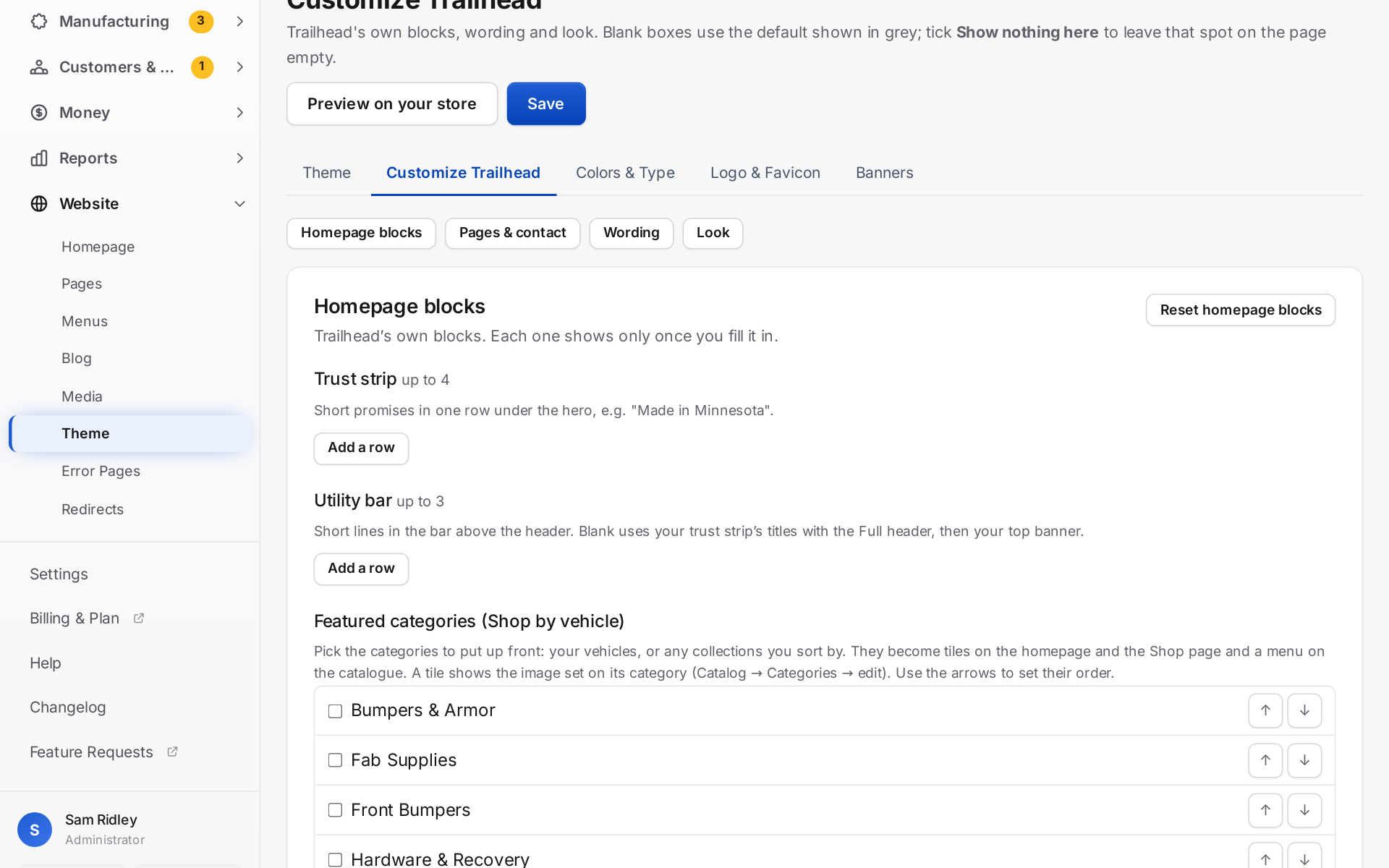
Customize the Trailhead theme from the admin
Website → Theme has a Customize tab for Trailhead, and Trailhead's card has a Customize button, so you can set it up before you activate it.
Homepage blocks: the trust strip, the utility bar above the header, Shop by vehicle (pick and order your vehicle categories) and the story band, with its photo chosen from your media library.
Wording: every line Trailhead writes on your store, from section labels and the product page's shipping and stock lines to the empty-cart message, footer headings and newsletter messages. The current wording shows in grey; a blank box keeps it.
Look: a logo, colours and fonts for Trailhead only. Blank boxes use your store-wide Colors & Type.
Reset puts one section back to Trailhead's defaults. Nothing changes on your store until you save, and a store that changes nothing looks exactly as before.
Customize Trailhead: homepage blocks, pages, wording and look, with a preview on your store
September 29, 2026 · Improvement — Storefront
The Trailhead storefront theme has a calmer "Charcoal & Rust" look
Graphite header, footer and story band on an off-white page, with condensed IBM Plex headings and fitment lines, years and labels in a mono typeface. Your brand colour is used for the main button, links and small details only, never for large bands.
Product cards show a square photo, what it fits, the name and the price. Cut-out photos on a white background sit on a soft grey panel; field photos fill the square. Cards are tagged only when a product is built to order or out of stock. Ready to ship and star ratings are on the product page.
The product page shows the main photo large with the others as squares beneath it, a status note, a two-column spec list and a short quote from the best review, with the full reviews below.
The bar above the header only appears when you set trust lines or turn on the top announcement banner, and it is drawn as a quiet line rather than a coloured band.
September 29, 2026 · Improvement — Platform, Admin
Clearer sign-up, Setup and empty lists
The Features page states both prices plainly: Monthly is $29/mo with a 0% platform fee, Pay As You Go is $0/mo plus 2% of sales, and card processing is separate on both.
The sign-up page's header is just the logo and Login. The site menu and a second Start free trial button no longer sit above the form you are filling in.
Setup keeps one count. When it brings you back to a step you skipped, the step says "skipped earlier" and shows the same "3/5 done" as the progress badge, instead of looking like you are starting again. Finishing touches says it is optional and not one of the counted steps.
A store with no products or no orders yet no longer sees search boxes and filters on those lists. They appear once there is something to search.
The Customers & CRM section name fits in the sidebar instead of being cut off.
September 29, 2026 · Improvement — Platform
A new look for kaniva.io
The Kaniva website is redesigned in the logo blue, with a navy hero taken from the brand banner, real screens from the admin, and the same buttons and cards as the admin. Every public page, sign-up and login on kaniva.io use it. Stores' own storefronts are unchanged.
September 29, 2026 · Improvement — Admin
The admin's blue matches the logo
Kaniva Blue in the admin's light mode is now the logo's deep blue, the same blue as kaniva.io. Dark mode keeps its lighter blues so text stays easy to read.
September 29, 2026 · Feature — Admin
An overview page for every menu section
Click a section's name in the sidebar (Home, Sales, Catalog and the rest) to see all its pages as cards. Each card shows a live number, such as orders to ship, reviews to approve, low stock or open tickets, plus what the page is for. The arrow beside the name still just opens and closes the section.
September 29, 2026 · Feature — Admin, Storefront
Your own order steps
One timeline per order: every order shows its steps across the top and one button to move it on. The defaults are Paid → Building → Packed → Shipped → Delivered.
Your own steps: set them at Settings → Order steps. Add steps like "Powder coat", rename them and reorder them. Each step can show to customers and email them.
Orders move themselves when they're paid, packed, labelled and delivered. Customers see the steps on their order page and the tracking page.
Build stages for build-to-order items are now yours to edit too.
Replaced: the separate Mark Completed, Change Status and Update Fulfillment controls on the order page. Status can still be set by hand under Advanced, and tracking can be added under Shipped another way?
Older orders show where they are on the timeline and aren't changed.
An order's step bar: the store's own steps and one button for the next one
September 29, 2026 · Improvement — Admin
Tidier admin pages
Each admin page now has one main button (blue); the other actions are quieter, so the next step is easier to spot. This covers the Dashboard, Orders, Products, Add/Edit Product, Inventory, Shipping Station, Accounting, CRM and Settings.
Page headers, filters, grids and wide tables fit phones: they wrap or stack instead of running off the screen, and wide tables scroll sideways inside their card.
Settings groups its pages under Store, Selling, Shipping, Payments & tax, Team & shop floor and Advanced.
Save stays in reach at the bottom of the screen on Inventory and General Settings.
Status badges use the same colours on every page, and charts, badges and stock colours follow Light, Dark and your palette.
Fixed: Stripe card fields in Accounting settings and Phone Order were dark grey text on a dark box in dark mode; they now use the theme's text colour.
September 29, 2026 · Improvement — Admin
Search finds orders by what was ordered
Type a product name or SKU in Search (Ctrl+K) to list the orders that contain it, for example "battery". Orders also match the customer's name or email, and each result shows who ordered and which item matched.
Fixed: on phones the search box now opens at the top of the screen, and the + menu closes when you open search or tap anywhere else.
Fixed: the + and Appearance menus now close with one tap anywhere else, including on each other's buttons. Before, tapping Appearance or some plain text left + open.
September 29, 2026 · Feature — Admin
A fresh admin look, with dark mode
The admin has a new Kaniva Blue look: clearer type, one bright main button per page, calmer cards and tables, and a navy sidebar.
Dark mode follows your computer or phone automatically. Use Appearance in the top bar to pick Auto, Light or Dark; your choice is saved just for you.
Pick your colours: Appearance also offers three palettes, Kaniva Blue, Graphite and Workshop Green, each in light and dark.
Status badges keep their meaning in both looks: green is good, amber needs a look, red is a problem.
On a phone, the top bar now fits on one line.
Printouts, packing slips, invoices and PDFs stay light. Your storefront is unchanged.
September 29, 2026 · Improvement — Admin
Purchasing links — a PO's receipts, and Add to Purchase List from Items
Receipts on the PO. Each purchase order's page now lists its own receipts. Open in Receiving History shows just that PO's receipts, with a Back to button to the PO. Receiving History no longer sends you back to the Purchase Orders list.
Add to Purchase List from Inventory → Items. Each item row has + Purchase List, and you can tick several rows and click Add selected to Purchase List. Items go on at their restock quantity. An item already on the list shows On list and isn't added twice.
September 29, 2026 · Improvement — Admin
Ship buttons live with the shipping details again
The order page's Ship actions are back in Shipping & Fulfillment, not the page header.
Nothing packed yet: one Ship button opens quick ship — enter the box size and weight and buy the label.
Packed boxes: every box without a label has its own Ship button that opens the Shipping Station with that box already scanned, one per packing slip.
September 29, 2026 · Improvement — Admin
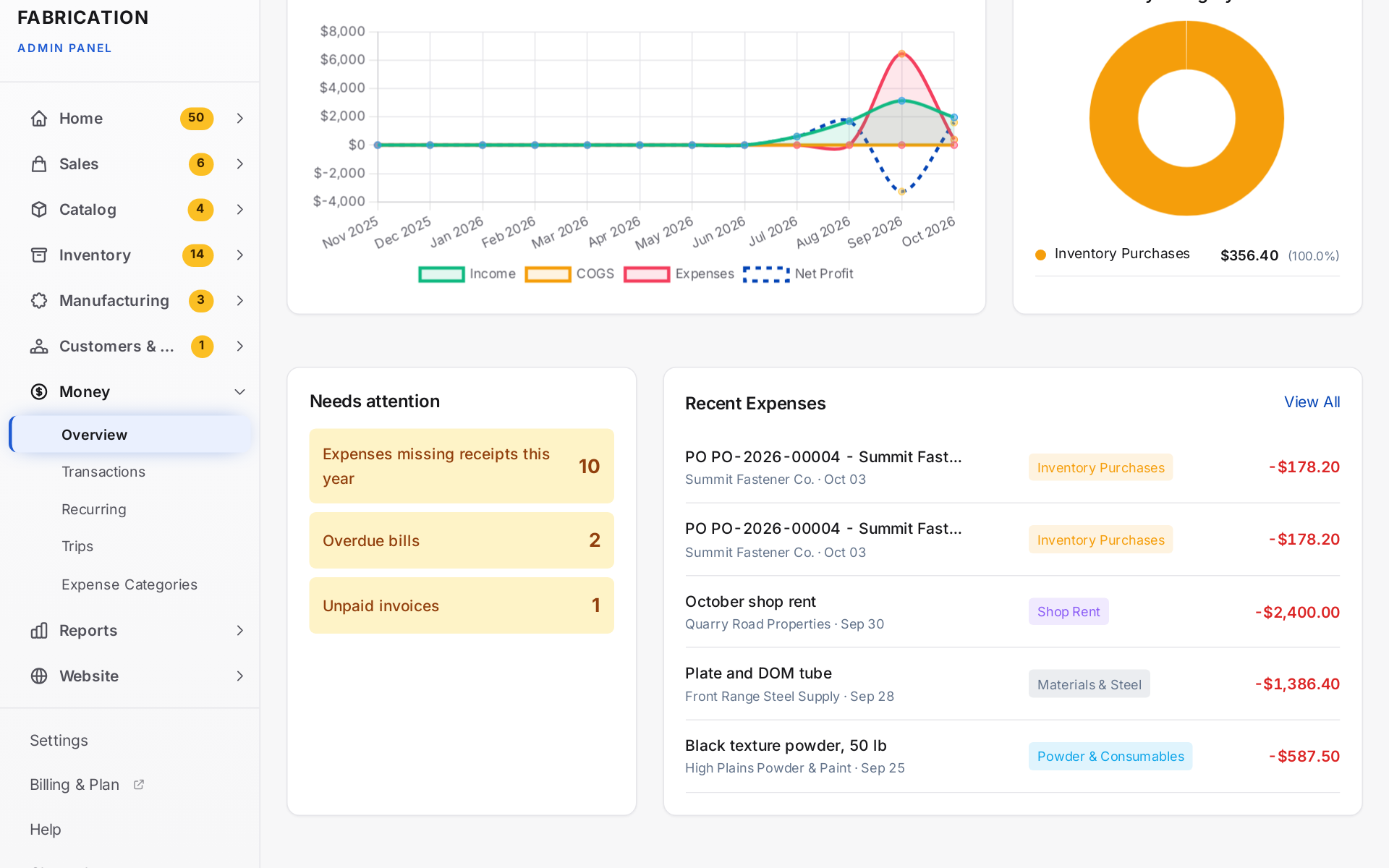
Accounting — one Transactions page, a Needs attention panel, and a Year-End report that matches the P&L
Transactions. Income, Expenses, Bills and Invoices are now tabs on one page (Money → Transactions). Date range, status and search are shared across the tabs and carry over when you switch. Invoices can now be filtered by date and by Unpaid. Old links to the separate lists open the matching tab with the same filters.
Needs attention replaces the Quick Links on the accounting dashboard. It shows how many expenses are missing receipts this year, how many bills are overdue and how many invoices are unpaid. Each count links to exactly those records.
Year-End is now built from the Profit & Loss and Tax Summary reports, so its totals always equal theirs for the same year. It adds the monthly breakdown. The expense-type and order-cost breakdowns were removed; the Expense Report has the per-category view. The Print / PDF button works again.
The Accounting overview: income, costs and expenses by month, and what needs attention
September 29, 2026 · Improvement — Admin
One CRM activity feed
Activities and Call Logs are now one feed under Customers & CRM → Activity, with a filter for each type you have (All / Calls / Emails / Meetings / Notes / Tasks). Each call shows once, with its direction, duration, transcription status and a View call link. The old Activities and Call Logs addresses open the feed.
A labelled Delete button on each row replaces the small ✕, and asks before deleting. Deleting a call removes its recording and transcript too.
CRM overview → Recent Activity shows the contact's name instead of the phone number when the number matches a contact, and groups repeated entries for the same contact and type within 30 minutes into one line with a count.
September 29, 2026 · Improvement — Admin
The product form is organised into tabs, with cost and margin
Tabs: Add Product and Edit Product are split into Basics · Pricing & Cost · Inventory · Shipping · Media · Visibility. If a save fails, the form opens on the tab with the problem, and that tab is marked with a red dot. The save bar, Ctrl+S / ⌘S and the unsaved-changes warning work from any tab.
Unit cost, supplier and location can be set on the product itself (with Advanced Inventory). They are the same values shown on Inventory Items, so a change in either place shows in both. Pricing & Cost shows the margin, (price − cost) ÷ price, and it updates as you type.
Sections follow the product type. Downloadable files appear only for Digital and Bundle products. Customer Customization Files appears only for Build to Order, or when a product already allows uploads. Changing the type shows or hides these sections straight away.
Ships From is now a list: your ship-from address from Settings → Shipping, plus your warehouses. New products default to the ship-from address. A value typed in the old free-text box stays selected until you change it.
Fixed: HS / Tariff Code, Country of Origin, and the Build to Order product-page title and description were shown on Edit Product but not saved. They save now.
September 29, 2026 · Improvement — Admin
Bulk actions, saved views and more product columns in admin lists
Bulk actions on Orders: tick orders (or the whole page) to print packing slips for all of them at once, mark them shipped, or change their status. Customers are emailed only if you tick Email customers. Digital-only and already-shipped orders are skipped when marking shipped.
Bulk actions on Products: activate, deactivate, set category or delete the ticked products. Products that have orders are deactivated instead of deleted. Every bulk action asks you to confirm and shows how many items it will change.
Saved views on Orders, Products and Inventory Items: save the current filters under a name and pick them from the Saved views menu later. Each person's saved views are private to them, and you can delete them.
Products list now shows each product's thumbnail, SKU, type and stock. The Export, Import and Add Product buttons now look the same.
September 29, 2026 · Improvement — Admin
A tidier order page — one Ship button, a More menu, Customer vs Account
One Ship button at the top of the order page opens the Shipping Station on that order with its next unlabelled box already loaded. If nothing is packed yet, the Station offers Pack boxes or a Single label for the whole order. The separate Create Shipping Label, Ship Station and Quick Ship buttons are gone.
More menu. Resend confirmation, Issue refund and Cancel order moved into More, next to Ship. Refunds and cancellations still ask you to confirm.
Customer and Account. The Customer card shows the billing name and email. The login that placed the order is on its own Account card, so a phone order placed by staff no longer looks like the staff member's order.
Work orders. Each build-to-order item shows one entry: Create work orders until they exist, then links to them. The second "+ Create Work Order" link is gone.
September 29, 2026 · New — Admin
Favorites in the admin sidebar
Click the star next to a page's name at the top of the admin to add it to Favorites. Favorites sit at the top of the sidebar in the order you added them. Click the star again to remove the page. Each person has their own Favorites, and the group only appears once you've starred something.
September 29, 2026 · Improvement — Admin
An easier admin — grouped sidebar, one Settings page, search anywhere
Sidebar regrouped into Home, Sales, Catalog, Inventory, Manufacturing, Customers & CRM, Money, Reports and Website. Groups open and close (the one you are in always opens) and stay the way you left them. Links that open a new tab show an arrow icon. Customer Groups now has a menu entry.
One Settings page.Settings at the bottom of the sidebar opens a page with a card for every setting (General, Payments, Tax, Shipping, Dealer Pricing, Theme, API Keys, Webhooks and more), and every settings page has the same tab strip across the top.
Search anywhere with Ctrl+K (⌘K on Mac) or the Search button: pages, orders (by either order number), products (name or any SKU), customers, CRM contacts (by name, email or phone in any format), purchase orders and work orders. + New in the top bar creates a product, phone order, expense, work order or contact.
Every page has a "?" that opens the matching part of the User Manual, and the manual now has a search box.
One order number. Every admin page shows the same order number, e.g. #ACB9BF3D. The dashboard used to show #21 for the same order. Order search also accepts the number from the order's web address.
Revenue labels. Every revenue figure now says whether it is Gross (incl. tax + shipping) or Net sales (excl. tax + shipping), with an explanation on hover. That is why the P&L and the Sales Tax report can show different totals for the same period. The Expense Report now opens on year to date.
Inventory Items: the counts now include parts, margin shows for every item with a price and a unit cost, and stock below zero gets a red negative badge and a warning when you save.
Lists: click anywhere on a row in Orders, Products, Expenses or Contacts to open it. Filters apply as soon as you change them, so the Filter button is gone. Press / to jump to the search box.
Long forms (product, Shipping, Tax, Theme) have a save bar that stays on screen, Ctrl+S / ⌘S to save, and a warning before leaving with unsaved changes. Products have a Duplicate button.
After creating a product you land on its edit page to add images, cost and variants.
Each setting has one home. POS now uses the rate from Tax Rates for your store's location. A rate you set on POS Settings earlier keeps working until Tax Rates has one for your location. Contact email, phone, address and hours are edited in Settings → General; Contact & Account Pages shows them read-only. Storefront Theme and Colors & Fonts are now one Theme area with tabs.
Smaller fixes: the Carts page no longer shows leftover draft wording and now links to Abandoned Cart Recovery. Every admin page has a breadcrumb that ends with the page name. Setup leaves the sidebar once your store is ready to sell (it stays on the dashboard). The purchasing pages show their steps (Low Stock → Purchase List → Purchase Orders → Receiving). The order page shows the billing name as the customer and the login as the Account. Counters say "1 customer", not "1 customers".
September 29, 2026 · Improvement — Platform
New Kaniva logo on kaniva.io
The marketing site header and footer use the new Kaniva Commerce logo, and the browser tab shows the Kaniva K. Store fronts keep their own logos and icons.
September 28, 2026 · Feature — Admin
Setup follows how you sell, and instant quoting is ready on every new store
Setup now matches the shop you described. A digital downloads shop skips shipping (four steps). A build-to-order shop can finish its product step by switching on instant quoting.
Every new store has instant quoting ready: customers upload a DXF or STL and get a price. Starter services, materials and rates are loaded under Custom Parts — change them to yours and switch quoting on.
When Setup is done it points you at your first real order: turn a test order into a work order, ship a test order, or buy your own download.
September 28, 2026 · Feature — Platform
Free migration requests and a public "What's new" page
kaniva.io/migrate replaces the email link: tell us where you sell today and roughly how many products, or ask for a short setup call.
kaniva.io/changelog lists new features and improvements.
Three new guides on the blog: Your first week for build-to-order shops, shipping stores and digital downloads.
September 28, 2026 · Pricing — Platform + Billing
Monthly now includes Manufacturing, CRM and Accounting
Both plans now include everything: Pay As You Go is $0/mo + 2% of sales, Monthly is $29/mo flat with a 0% platform fee. There are no add-ons to buy on Monthly.
The pricing cards, Pricing page (with a single break-even point), Compare page, sign-up text, terms and your billing page all say so. Monthly checkout charges the $29 base only and turns on all three modules.
If add-ons are ever priced separately again, stores already on Monthly keep them.
September 28, 2026 · Feature — Platform
Pick how you sell before you start, and see an order go through
The homepage asks What do you sell first? right under the headline — Build to order, Products I ship, or Digital downloads — and each starts the free trial for that kind of shop.
Creating a store now asks the same question (preselected from the homepage). Your answer pre-fills how you sell and how orders reach customers in Setup, so the first step is already half done. You can change it there.
New homepage sections: One order, start to finish (quote → order → work order → shipped), We run our own shops on Kaniva, and A storefront plus five apps, or one system. Pricing now comes after them.
The Pricing page has a Which should I start on? guide with the break-even point between Pay As You Go and Monthly, worked out from the current prices.
The Features page opens with a jump bar (Build to order · Ship · Digital · Run the shop) and leads with Custom Products & CAD Files.